Need the version before your last save?
Every Save keeps previous versions of your important files automatically.
Overview
Every Save — Auto Backup · Watch Folders · Version History
Created by sycho · v1.01 · 2026.07.06
Published by SychoSoft
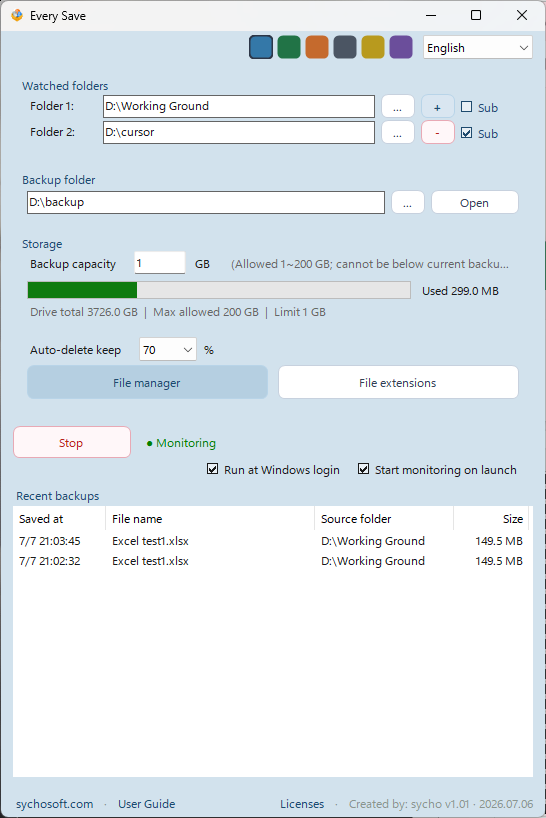
Every Save is a lightweight Windows desktop app that watches folders you choose and automatically copies changed files to a backup folder. Each saved copy gets a timestamp in the filename, so you can keep older versions even when you overwrite the same file name. Set watch folders, pick file types, limit backup size, and let the app run in the background or from the system tray. This is a local backup utility — not cloud storage, not a sync service, and not a file-sharing platform.
Main features
- Folder watching — Register up to 10 work folders. Watch only the top level or include subfolders per folder. Add paths with browse, drag-and-drop, or
+/−row controls. - Automatic backup — When a watched file is saved or changed, a copy is written to your backup folder with a date-time prefix (e.g.
2026-07-04 14-30-00_report.xlsx). - Backup destination — Default folder:
Documents\EverySave\Backup. Choose another folder on an internal drive (not USB, network, or drive root). - Extension filter — Turn file types on or off (Excel, PowerPoint, HWP, Word, text, Python, and more). Add custom extensions with comma-separated input.
- Capacity limit & auto-trim — Set a backup limit from 1–200 GB. When usage exceeds the limit, the oldest indexed backups are removed until usage falls to your chosen keep percentage (30–80%, default 80%).
- File manager — Search backups by date, source folder, name, extension, and size. Delete selected items with confirmation.
- Recent backup list — See the latest saves on the main screen; double-click a file name or source folder to open it.
- Startup & tray — Optional run at Windows login, auto-start monitoring on launch, minimize to system tray, and restore from the tray icon.
- Languages & themes — Nine UI languages and seven accent color themes.
When to use it
- You work in Excel, HWP, PowerPoint, or other documents and want automatic local backups while you edit.
- You need version history without relying on cloud sync or manual “Save As.”
- Several project folders should be watched at once (up to 10).
- You want a simple Windows app with a small portable executable and settings under
Documents\EverySave. - You prefer backups on your own PC with a clear size limit and automatic cleanup of old copies.
How to use
- Download EverySave.exe from the box above.
- Place it in any folder (Desktop, USB drive, shared folder, etc.).
- Double-click to launch. Running the exe again brings the existing window to the front.
- Add one or more work folders to watch and confirm the backup folder.
- Open Extension settings and enable the file types you need.
- Set backup capacity (GB) and auto-delete keep % if desired.
- Click Start monitoring. Changed files are backed up automatically.
- Use File manager to search or remove old backups; open the backup folder with Open.
No separate installer is required. The program is a portable single executable.
Download info
| Item | Detail |
|---|---|
| File | EverySave.exe |
| Updated | July 6, 2026 |
| File size | ~440 KB |
| Format | Portable Windows executable (no installer) |
Requirements
- Windows 10 or later (64-bit recommended)
- .NET Framework 4.8 — required. Usually preinstalled on recent Windows; if the app does not start, install .NET Framework 4.8 from Microsoft.
- Internal disk space — enough for your backup folder and the GB limit you set (up to 200 GB).
- Administrator rights are not required to run Every Save itself.
Settings, activity log, and default backup data are stored under Documents\EverySave on your PC. The backup index file (everysave_backup_index.json) is stored inside your backup folder.
Legal notice
Every Save copies files only from folders you configure to a backup location you choose on your computer. You are responsible for ensuring you have the right to copy and retain that data, and for complying with your organization’s policies and applicable laws. The app does not upload files to the internet, bypass access controls, or modify your original work files. Every Save is not affiliated with Microsoft, Hancom, or any third-party application vendor.
Changelog
2026-07-04 — Every Save v1.0
- Single portable executable: EverySave.exe
- Watch up to 10 folders with optional subfolder monitoring
- Timestamped backup copies with extension-based filtering
- Backup capacity limit (1–200 GB) with automatic trim by age
- File manager with search and selective delete
- Recent backup list on the main window
- Nine UI languages and seven color themes
- System tray support, startup registration, and auto-start monitoring
- Embedded user guide and license viewer
FAQ
Do I need an installer?
No. EverySave.exe is portable. Download it, place it anywhere, and run it.
Does it upload my files to the cloud?
No. Backups stay on your PC in the folder you select.
How many folders can I watch?
Up to 10 work folders at the same time.
Can I watch subfolders?
Yes. Turn on Subfolders for each row where you want nested folders included.
What happens when the backup limit is full?
The app deletes the oldest indexed backup files until usage is at or below your keep % setting. Files not in the index are not removed by auto-trim.
Can the backup folder be on a USB drive or network path?
No. For stability, backup and watch folders must follow the app’s path rules (e.g. no drive roots, USB, or network locations for backup).
Where are settings saved?Documents\EverySave\everysave_config.json
Where are backups saved by default?Documents\EverySave\Backup — you can change the backup folder in the app.
Do I need FFmpeg, PowerPoint, or Ghostscript?
No. Those apply to other SychoSoft apps (e.g. Tube Save, Document Studio), not Every Save.
Mac or Linux support?
This build targets Windows only.
Monitoring does not start.
Check that at least one work folder and a valid backup folder are set, and that paths do not conflict (e.g. backup inside a watched folder). See the in-app user guide for folder rules.
A file was not backed up.
Confirm its extension is enabled in Extension settings and that monitoring is running (green status).
Problems or feedback?
Contact us through sychosoft.com.
Comments